
3D Packaging Preview
The 3D workspace folds your box on screen so you can judge proportions, artwork placement and finishes before ordering samples. It is an illustrative preview for visual decisions, not an exact model of the dieline.
- Workspace
- 3D
- Accuracy
- Illustrative, not exact
- Laminations
- None, matte, gloss, soft-touch
- Cameras
- Perspective or orthographic
This is the live editor. Your project stays open when you move between DielineDock pages.
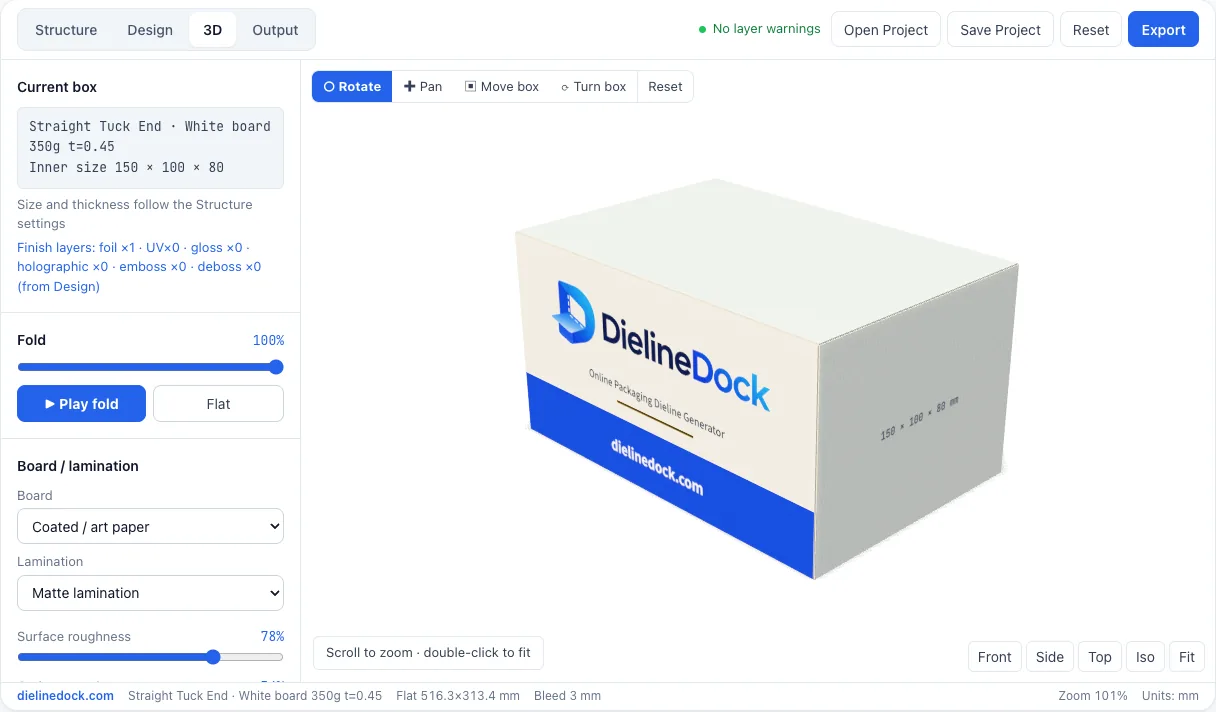
What the preview is, and what it is not
The model is built from the same nominal length, width and height as your dieline, but not from the exact dieline geometry, and flap shapes are approximated. Use it to check looks and artwork placement, then confirm fit and folding with a physical sample from your printer.
Fold and unfold the box
Drag the fold slider between flat and closed, or press Play fold to watch the full sequence. Stopping halfway shows which panels meet at an edge and whether artwork continues across them as intended. The Structure workspace also keeps a small live 3D preview beside the dieline.
Move around the box
Pick an interaction mode, then a fixed view when you need a straight-on look.
- Rotate, pan, move box and turn box modes
- Front, side, top and iso views
- Perspective or orthographic camera
- Double-click to fit the box to the view
Boards and laminations
Board presets change the surface look: coated white, uncoated ivory, coated or art paper, natural kraft, black, grey-back white board, pearlescent and silver board. Add a matte, gloss or soft-touch lamination, or none, and tune surface roughness and grain strength and scale. These settings affect appearance only; dieline thickness comes from the material chosen in the Structure workspace.
Inspect finishes
Finishes marked in the Design workspace appear on the folded box: foil, spot UV, gloss, emboss or deboss, and holographic. Inspect modes isolate the foil, UV, gloss and holographic plates, show emboss height, or lay a 20 mm UV checker over the surface to read coverage.
Lighting and presentation
Studio lighting presets show how foil and gloss catch light from different angles. Use the orthographic camera for flat views of each face, or perspective for a more natural impression when sharing a screenshot with your team.
Frequently asked questions
Can I approve production from the 3D preview?
No. The preview is illustrative: it uses nominal dimensions and approximates flap shapes. Approve structure and colour from a printer proof and a physical sample.
Can I see 3D while editing the dieline?
Yes. The Structure workspace has a small live 3D preview. Open the full 3D workspace for lighting, finishes and camera controls.
Does a board preset change my dieline?
No. Board presets and laminations change the look in the preview. The thickness used to size the dieline comes from the material in the Structure workspace.
How do I check where spot UV will go?
Use an inspect mode to show the UV plate on its own, or turn on the 20 mm UV checker, then compare with your layer settings.