
Packaging Artwork Designer
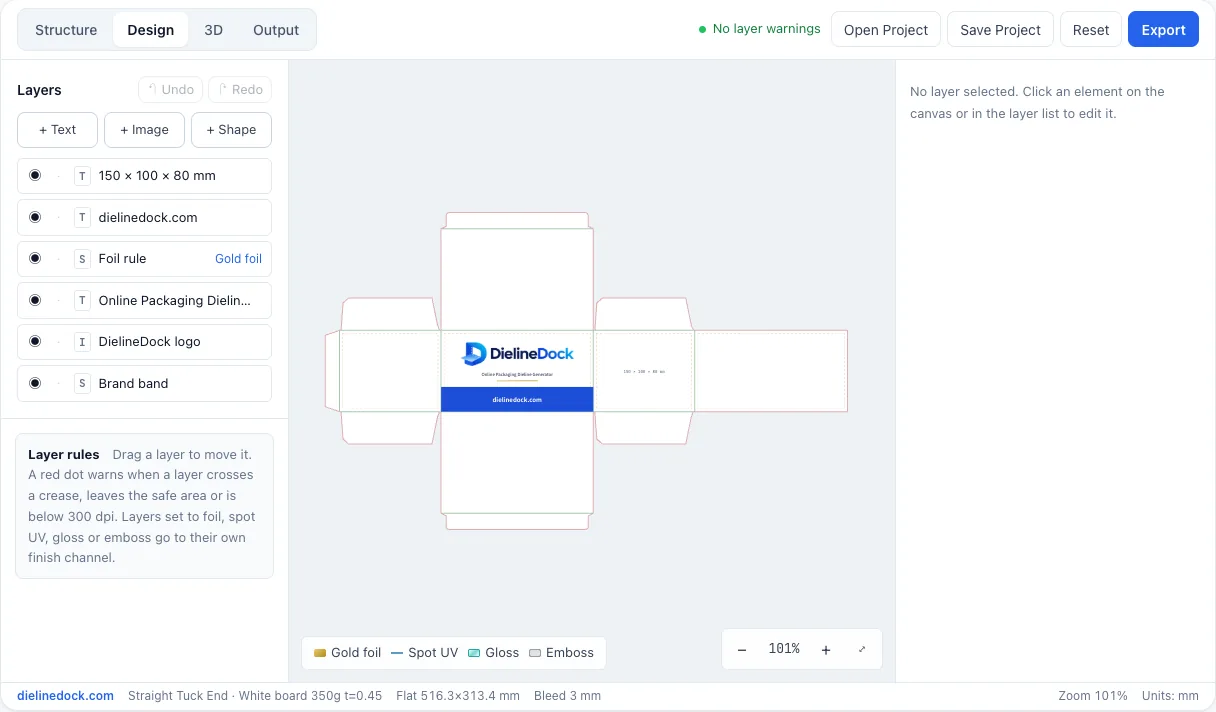
The Design workspace puts artwork directly on the panels of your dieline instead of guessing where folds will land. You work with layers, panel alignment and finishes, and the editor warns you when something drifts across a crease or out of the safe area.
- Workspace
- Design
- Layer types
- Text, image, colour block
- Image formats
- PNG, JPG, WebP
- Image privacy
- Not uploaded while you design
This is the live editor. Your project stays open when you move between DielineDock pages.
Add your logo and images
Add PNG, JPG or WebP files, or drag an image straight onto the panel where it belongs. Images are read in your browser as data URLs and are not uploaded while you design. When you export a PDF, the rendered artwork is sent to our server to create the file. You can crop a placed image or replace it in the same spot, which makes it easy to compare logo versions.
Text and colour blocks
Text layers offer Noto Sans SC and Noto Serif SC, with size, bold and colour controls. Colour blocks are simple shapes for background fills, bands across a panel or labels behind text. Fonts load from Google Fonts; only the fonts are fetched, your design is not sent.
Layer controls
Every layer has the same controls, whether it is a logo, a headline or a colour band.
- Position, size, rotation and opacity
- Lock and hide
- Duplicate, reorder and delete
- Undo and redo with ⌘Z and ⌘⇧Z
Align artwork to panels
Align to panel positions a layer relative to the panel it sits on, so a logo can be centred on the front or an ingredients block placed on a side without measuring by hand. It keeps artwork tied to the box structure rather than to the overall sheet.
Mark finishes per layer
Each layer can carry one finish: none (standard CMYK print), gold foil, silver foil, spot UV, gloss, emboss or deboss, or holographic. Marking finishes on the layer keeps your intent clear, lets you see them on the folded box in the 3D workspace, and is used to build the finish separation PDFs in Pro, which is not open for purchase yet.
Warnings that catch common mistakes
The editor flags three problems as you work. Treat them as prompts to review, not as a full preflight.
- A layer crosses a crease, so it would break over a fold.
- A layer leaves its panel or the safe area.
- An image is below 300 dpi at its printed size.
Frequently asked questions
Are my images uploaded anywhere?
Not while you design. Images are read in your browser, and if you save a project on Starter or Pro they are embedded in the .boxproj file on your device. When you export a PDF, the artwork rendered from your design is sent to our server to create the file, and the PDF is stored privately with your account.
What image resolution should I use?
Aim for at least 300 dpi at the printed size. The editor warns you when a placed image falls below that.
Can I remove the DielineDock logo from the sample box?
Yes. The sample box includes the DielineDock logo and domain as ordinary editable layers. Delete or replace them like any other layer.
Will foil and spot UV look exactly as on screen?
No screen can show that. Finish settings record your intent and the 3D view gives an illustrative impression. Confirm finishes with a physical proof from your printer.