
What is a dieline? A plain guide to cut lines, creases and flaps
A dieline is the flat drawing of a box before it is folded. It shows where the board is cut, where it folds and how every panel connects. This guide explains the parts of a dieline in plain terms and shows how DielineDock draws one for each of its five box styles.
- Cut lines
- Drawn in red
- Crease lines
- Drawn in green
- Box styles
- STE, RTE, Mailer, Lid & Base, Drawer
- Input
- Inner L × W × H in millimetres
Who this guide is for
This guide is for anyone who needs a custom box but has never worked with packaging files: founders, designers new to packaging, makers and teams briefing a printer.
Artwork is designed on a flat sheet, but a box is folded from one or more shaped pieces. Without a dieline you cannot know where a logo will land, which edge becomes the top or whether text will wrap around a fold.
Core concepts
A dieline is a technical outline used to make the cutting die, the tool that cuts and scores the printed sheet. It is a structural drawing, not artwork, and is normally kept on a separate layer.
Cut lines mark where the board is cut all the way through. They form the outline of the box and any slits. Crease lines mark where the board is pressed rather than cut, so it folds cleanly along a straight line.
Panels are the faces of the finished box: front, back, sides, top and bottom. Flaps are the smaller parts that close or lock it. A tuck lid ends in a tuck tongue that slides inside the box, dust flaps fold in under the lid to close the corners, and the glue flap is the narrow strip glued to the last panel to join the body into a tube.
Every box style has a different dieline because the construction is different. A Straight Tuck End is a glued tube with lids on both ends. A Mailer Box is one piece that folds up without glue. Lid & Base and Drawer Box are made of two separate pieces.
How DielineDock draws a dieline
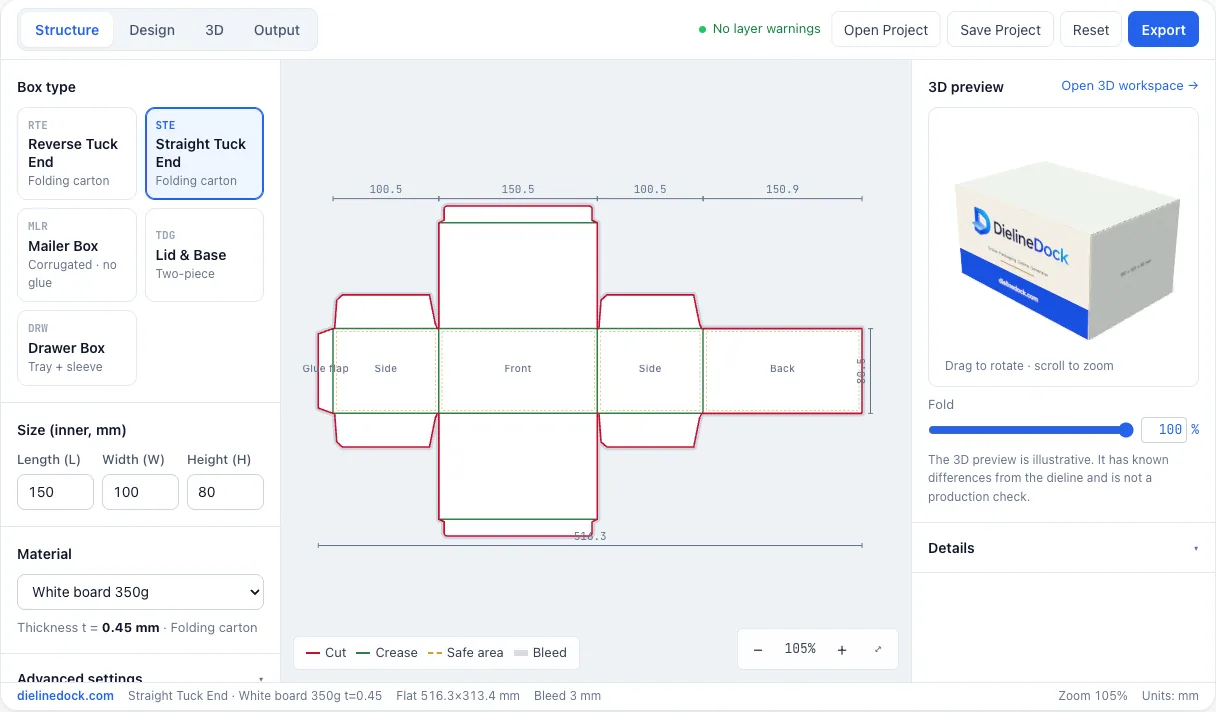
In the Structure workspace, DielineDock draws cut lines in red and crease lines in green. It can also show the dashed safe area, bleed band, dimensions and panel names, each of which can be toggled. A small live 3D preview sits next to the drawing.
You enter inner dimensions and choose a material, and the tool adds board thickness automatically. On a Straight Tuck End, for example, the four body panels are W+t, L+t, W+t and L+2t wide, where t is the board thickness. The Details panel lists the flat size, the flat size with bleed, the panel widths, and the length and segment count of cut and crease lines.
Practical steps in DielineDock
- 1Open the editor. The Straight Tuck End sample, 150 × 100 × 80 mm, loads by default.
- 2Choose a box style: Straight Tuck End, Reverse Tuck End, Mailer Box, Lid & Base or Drawer Box.
- 3Enter the inner length, width and height in millimetres.
- 4Pick a material so the board thickness and recommended bleed are set.
- 5Turn on panel names and dimensions to see the front, back, sides and glue flap.
- 6Use Edit line types if you need to switch a line between cut and crease.
- 7Read the flat size in the Details panel. On Starter or Pro, save the project as a .boxproj file.
Common mistakes
- Treating the dieline as artwork and printing the red and green lines on the box.
- Mixing up cut and crease, so a fold is cut through or an edge is only scored.
- Placing a logo on the glue flap or a dust flap, where it is hidden once the box closes.
- Reusing one style's dieline for another style and expecting the artwork to line up.
- Assuming a dieline is ready for production without a printer review and a physical sample.
Frequently asked questions
Is a dieline the same as a template?
The words often overlap. In DielineDock the dieline is generated from your dimensions and material, so it updates whenever you change the box.
Why are cut lines red and crease lines green?
It is a visual convention in DielineDock so you can tell them apart at a glance. Printers may use their own colours or spot colour names, so confirm how they want cut and crease marked.
Can I draw any dieline shape I like?
No. DielineDock generates the outline from the chosen box style. You can change dimensions, material, bleed and glue flap width, and switch lines between cut and crease, but it is not a free-form drawing tool.
Is the dieline guaranteed to be correct?
No tool can guarantee that. DielineDock does not automatically check outline closure, self-intersections or minimum cut spacing. Review it with your printer and make a physical sample.